Your Shopify Product Feed Is a Testing Platform — Here's How to Use It
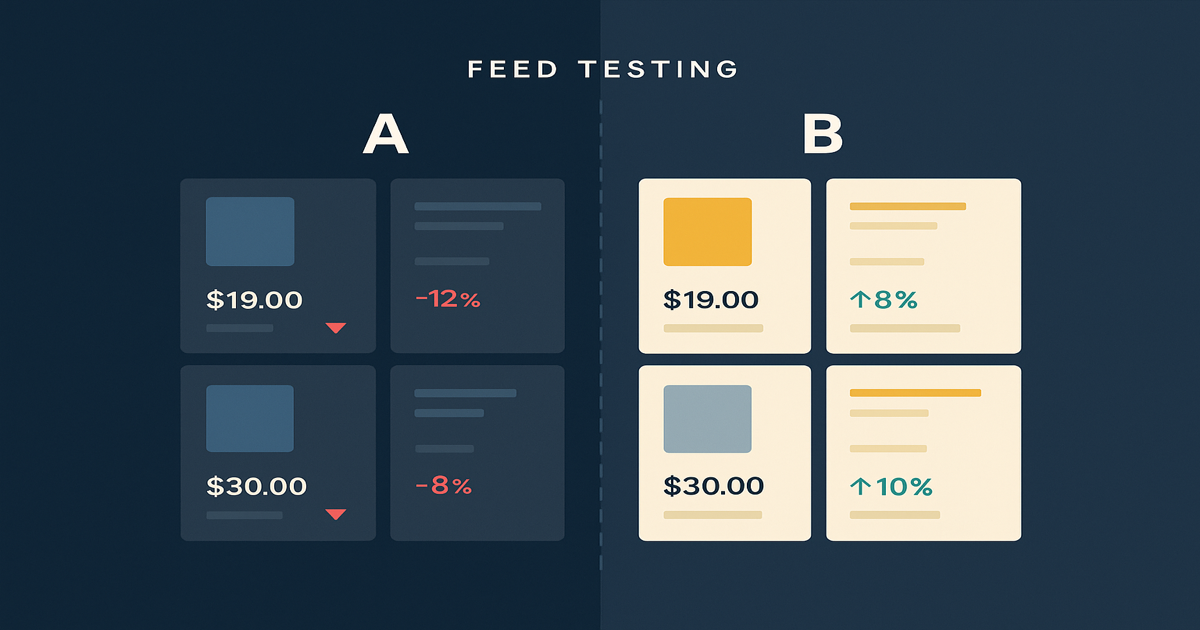
Here’s a question most Shopify merchants have never asked: when a Google Shopping sale shows up in your analytics, do you know whether the ad caused that sale — or just happened to be there when it occurred?
Attribution models track where a sale was recorded. Last-click gives credit to the final touchpoint. Multi-touch spreads credit across the journey. Both are measuring correlation — where activity and conversion overlapped — not causality. The harder question is the counterfactual: would this customer have bought without the ad? If they were already searching your brand name, already returning to complete a purchase, the ad didn’t generate that conversion. It just took credit for it.
This isn’t academic. It determines whether your Google Shopping spend is building new demand or recycling existing demand you would have captured anyway. And it’s why the most advanced e-commerce growth teams have started treating their product feed as a measurement instrument, not just a data delivery mechanism.
Google Shopping feed optimization — real optimization, not just fixing disapproved products — starts with this shift. Your feed is the layer between your catalog and Google’s algorithm. Before Google ranks your products, before a buyer sees your listing, the feed is telling the algorithm what each product is, what it’s worth, and how to characterize it. Most merchants treat this as a passive hand-off. It isn’t. It’s an active intervention point. The merchants who understand that are running a fundamentally different playbook — and getting fundamentally different results.
This piece is about that playbook. What feed testing actually is, how to run it with enough rigor to produce real signal, and what the results tell you that your store analytics never will.
Correlation vs Causation
What your ad reports actually measure
Your ad ran. Sales happened. Google reports 5 conversions from this campaign. The report draws a straight line from ad to sale. Case closed, right?
The Feed as Causal Infrastructure
Every product listing Google serves starts as data in your feed. This is how Google understands what category your product belongs to, which queries it’s relevant for, and how to present it relative to competitors. The data flows from your product feed management (PFM) tool to Google’s crawler — but the PFM layer can transform that data before Google ever sees it.
Most merchants use this capability for maintenance: fix formatting errors, add missing attributes, keep the feed in sync with the catalog. That’s table stakes. The higher-order use of this capability is deliberate manipulation: changing how specific products are represented, measuring what happens to their performance, and attributing the difference to the change.
The research methodology behind this is called PFM-Driven Testing — a distinct approach in the measurement hierarchy that sits above standard attribution. It treats the feed as a laboratory. You split your SKUs into test and control groups. You change one variable in the feed. You measure the delta in performance over a controlled time window. The difference between test and control is your signal.
This is a more accessible form of causal inference than full-scale incrementality testing, which typically requires geo-split tests, statistical holdouts, or expensive measurement infrastructure. Feed-level testing requires a rules-based PFM tool, a Google Merchant Center account, and discipline. Most Shopify merchants running Google Shopping already have the first two. The discipline is what this article is for.
PFM-Driven Testing: A Concrete Example
How one hiking boot becomes a controlled experiment
Here's your hiking boot in Shopify. The title works great for your store — clean, branded, on-shelf. But Google Shopping is a different environment with different rules.
The core insight: product feed optimization at this level isn’t about compliance. It’s about treating the feed as the data governance layer it actually is — a logic gate between your catalog and the algorithm, where you control the inputs and measure the outputs. Before Google’s algorithm makes any decisions about your products, you’ve already decided how to present them. The question is whether you’re making those decisions intentionally or by default.
Why Your Store Title Isn’t Your Feed Title
Here’s something that surprises merchants the first time they really think about it: your Shopify product titles and your Google Shopping feed titles don’t have to match. They can be completely different.
Your store title is optimized for your storefront — branded, written to fit your navigation, designed for customers who are already on your site and exploring with some trust in the brand. Your feed title is what appears on Google Shopping, in front of buyers who have never heard of you, actively comparing options from multiple merchants in a single glance. These are different audiences, different contexts, different jobs. There’s no reason the same title should serve both equally well.
Feed rules make this separation possible. A rule can rewrite the title field in your feed for any product or product group, completely independently of what Shopify stores. When Google fetches your feed, it gets the rewritten version. Your Shopify store is untouched. Your customers see nothing different.
What this creates is a controlled environment for feed testing on Google Shopping: your store remains your brand’s storefront. Your feed becomes an experimental surface. You can run variants, measure results, and roll winners — without touching your catalog, your product pages, or your navigation.
This matters because Google Shopping is a high-intent channel. Someone searching “men’s trail running shoes breathable waterproof” is much closer to purchase than someone who landed on your site from a social post. The signal you get from that audience — what they click, what they convert on — is qualitatively different from your general site analytics. And most merchants are leaving that signal completely untapped because they’ve never thought of their feed as something they can actively experiment with.
What Feed Testing Actually Tells You
The obvious use case is product title testing — does Variant B outperform Variant A? But systematic feed testing generates a richer set of signals than a single title comparison.
Which positioning converts high-intent buyers
Google Shopping visitors are in an active buying session. When a title variation outperforms on Google Shopping, you’re learning what messaging resonates with people who are ready to buy right now — not researchers, not browsers, not people who clicked out of mild curiosity.
That signal is qualitatively different from your site analytics. A title that converts on Google Shopping is a message that works at the bottom of the funnel. That’s directly applicable to your product page above-the-fold copy, your paid search ad headlines, your email subject lines for cart abandonment campaigns — anywhere purchase intent is high, the same positioning that works on Google Shopping is likely to work.
The right attribute sequence for your category
Title optimization isn’t just about including the right keywords — it’s about the order. Google’s algorithm weights earlier words more heavily. Buyers scan from left to right and make click decisions in under a second. The sequence of Brand → Product Type → Key Attribute matters, and the optimal sequence varies by category and query pattern.
Feed testing tells you empirically what sequence works for your specific products. You might find that leading with the product type (“Waterproof Trail Running Shoes — Men’s, Size 8–13”) outperforms leading with the brand. You might find that a specific technical attribute placed early — “IP68 Waterproof” or “Anti-Slip Sole” — is the click trigger for buyers in your niche. You cannot reason your way to this answer. You have to measure it.
Which products are costing you money without generating returns
This is where feed testing intersects with catalog health. Two categories of SKU typically surface when you start measuring performance at the product level:
- Vampire SKUs: Products with meaningful ad spend and zero or near-zero conversions. They drain budget without generating incremental revenue. Every dollar spent on them is a dollar not flowing toward products that actually convert.
- Zombie SKUs: Products with zero impressions or near-zero clicks. Google isn’t surfacing them at all — likely due to missing attributes, poor categorization, or data quality issues. They’re dead weight in the catalog.
Both are actionable. Vampire SKUs can be suppressed via the excluded_destination field in GMC, repriced, or repositioned with a title change. Zombie SKUs can be audited for data completeness or excluded from Google entirely. Feed testing surfaces these categories quickly — when you’re measuring at the SKU level, outliers become visible fast.
How to Run a Feed Test: Step-by-Step
This is where most guidance gets vague. “Test your titles” is advice. Here’s what actually executing a test looks like — with enough specificity to start this week.
Step 1 of 7Step 1: Identify your test candidates
In Google Merchant Center, navigate to Products → Performance → by item. Sort by Impressions descending and export to CSV. This gives you your full product performance roster.
One important nuance: GMC’s default performance view mixes impressions from free product listings and paid Shopping ads. For feed testing purposes, you want paid Shopping data only — free listing impressions are noisier and respond to different signals. Filter specifically to Performance → Shopping ads → by item to isolate the paid Shopping performance. That’s the dataset to work from.
Filter the export to products with more than 100 impressions per week and below-median CTR. These are your best candidates. The logic: Google is already surfacing these products, but buyers aren’t clicking — which means there’s likely a positioning mismatch between how the product is described and what buyers are looking for. These mismatched products have the most room to move.
A calibration benchmark helps here. “Below median CTR” is relative to your own catalog, but as a sanity check: normal CTR ranges vary meaningfully by category. Apparel typically runs 0.5–1.5%; electronics 1–3%; home goods 0.3–0.8%. If a product is materially below those ranges, it’s a strong candidate regardless of where it sits versus your catalog median. Aim for 10–20 SKUs for a first test cohort — and as you’ll see in Step 5, start slightly larger than you think you need.
Step 2 of 7Step 2: Define your test/control split and set up tracking labels
This is where most merchants make the error that invalidates their results. They run Variant B for a month, compare to the prior month, and call it a win. The problem: month-over-month comparisons mix in seasonality, bid changes, competitor activity, and budget fluctuations. The signal is contaminated before analysis begins.
You need a SKU-level split: some products get the new title (test group), some keep the current title (control group). Both groups run simultaneously, in the same campaigns, under identical conditions. The only difference is the variable you’re testing.
For large cohorts (50+ SKUs), use a modulo on Product ID for assignment — even Product IDs go to test, odd go to control. This gives you random assignment without manual selection bias, similar to how formal RCTs handle group allocation. For small cohorts (10–20 SKUs), manual assignment is fine — but document which SKUs are in which group before the test starts.
Here’s the step most guides skip: label your test and control groups in the feed itself. In your PFM tool, write a supplemental feed rule that assigns "test" or "control" to custom_label_0 based on the group assignment — even Product IDs get “test”, odd get “control”, or however you’ve split them. This label then shows up in GMC, and you can filter all performance reports by that label rather than manually cross-referencing product IDs in a spreadsheet.
Without this label, you have no clean way to filter GMC performance data by test versus control. You’d be exporting everything and pivot-matching IDs by hand. With the label, it’s a two-click filter. The label is the difference between a clean analysis and a data wrangling nightmare.
One constraint worth knowing: custom_label_0 through custom_label_4 are your five available slots. If you already have a business rule writing “bestseller” or “seasonal” to custom_label_0, use a different slot — and make sure you’re not displacing a label that’s tied to an active bidding rule. The slot you use for test/control tracking should be otherwise unused for the duration of the test.
Step 3: Isolate the variable
Change one thing per test. If you change the title and the description and the image simultaneously, you cannot attribute the lift to any single change. That’s not a test — it’s a catalog update. This discipline is the difference between data and noise.
The highest-impact variables to test, roughly in order:
- Title — attribute sequence and keyword placement
- Description — purchase-intent copy vs. product-spec copy
- Custom labels — bidding signals that affect how aggressively Google enters auctions for this product
The Smart Bidding / Performance Max interaction deserves specific attention here. If you’re running P-Max campaigns, Google’s algorithm controls bidding at the product level entirely — you cannot set manual bids per product inside a P-Max campaign. This means P-Max tests are inherently noisier: the algorithm may reallocate budget toward better-performing SKUs during the test window, which makes it harder to isolate whether a CTR gain is from the title change or the increased budget.
The workaround: for the duration of the test, exclude your test product groups from P-Max and run them in a standard Shopping campaign with manual CPC. Yes, this temporarily changes the bidding environment for those SKUs. But it also gives you a controlled setting where the only variable is what you’re actually testing. This is a real operational decision — make it deliberately rather than letting P-Max contaminate your results.
This is also the “digital blinding” principle applied in practice: the ad platform should not be able to distinguish test from control and should not be able to introduce algorithmic bias. Standard Shopping with manual CPC achieves that. P-Max does not.
Step 4 of 7Step 4: Set up and verify the feed rule
Scope the rule to your test SKU group — by product ID, custom label, SKU, or product type, depending on what your feed management tool supports. Apply the title transformation to test SKUs only.
Before you activate: preview the feed output for at least 5 products, including products you expect to be transformed and a few you expect not to be transformed. Confirm the rule applies correctly to the right products and leaves the others untouched. Rules with overly broad conditions are a common failure mode — one bad regex or missing condition qualifier can rewrite your entire catalog instead of just the test group. Preview first, activate second.
Once live, trigger a manual fetch rather than waiting for GMC’s standard crawl. Navigate to Settings → Data sources → your feed → Fetch schedule — you’ll see when the last crawl ran and when the next one is scheduled. There’s a “Fetch now” option. Use it. Without a manual fetch, you may wait 24–48 hours before GMC picks up the rule changes, which delays your test start and shortens your window unnecessarily.
After fetching, verify the rule actually propagated. In GMC, go to Products → All products → filter by one of your test product IDs → click into the product → Item information tab. Check the title field. It should show the transformed value, not the original Shopify title. If it’s still showing the Shopify value, the rule hasn’t applied yet — either the fetch didn’t complete or there’s a rule condition issue. Don’t start the test clock until you’ve confirmed the transformation is live in at least a few test products.
Once propagation is confirmed, note the exact start date and time. That’s Day 1 of your measurement window.
For help evaluating which feed management tool fits your catalog size and rule complexity, our feed tool calculator can help you find the right fit. For context on how enterprise platforms like Feedonomics approach rules at scale — and how SPF compares — see our Feedonomics alternative comparison.
Step 5 of 7Step 5: Monitor for data hygiene issues
This step is almost always omitted from guides about feed testing. These aren’t edge cases — they’re routine events on Shopify catalogs, and any of them will corrupt your results if you don’t control for them:
Stock changes: If a test SKU goes out of stock during the test window, its impression data drops to zero and drags down CTR for the test group artificially. Track OOS events in GMC via Products → Diagnostics → Item issues → filter for “Out of stock” events. Export to CSV and cross-reference against your test SKU list. Any SKU with an OOS event during the window gets excluded from analysis.
Price changes: A price drop artificially inflates CTR — buyers see a lower price in the listing and click regardless of title quality. GMC doesn’t surface price change history directly; pull this from Shopify. Go to Admin → Products → Export, then compare the price column against a snapshot you took at test start. Any delta means exclude that SKU.
GMC policy flags: If a test SKU gets flagged or disapproved during the window, its data is contaminated. Pull it from analysis.
Here’s the cumulative exclusion math to keep in mind: on a 20-SKU test, it’s not unusual to end up excluding 4–6 SKUs due to stock or price events by the time you close the window. That leaves you 14–16 clean SKUs for analysis — which is fine statistically, but only if you planned for it. Start with 25–30 SKUs if your analysis target is 20. The attrition is predictable; design around it up front.
Log these events throughout the test. Even a simple spreadsheet column works. This is the discipline that separates a clean test from one that merely looks clean.
Step 6 of 7Step 6: Run for 3–4 weeks, pull data, calculate lift
After the test window closes, here’s the exact data pull:
From GMC: Navigate to Performance → Shopping ads → Group by: Item ID → set Date range to your test window → Download CSV. Pivot on Item ID, sum Clicks and Impressions for each product, then calculate CTR = Clicks / Impressions. Join this against your test/control label list (which you exported from custom_label_0 back in Step 2) to separate the two groups.
From GA4: Go to Explore → Free-form exploration → add Item ID as a Dimension → add Transactions and Purchase revenue as Metrics → filter to your test window dates → export. Cross-reference Item IDs against your test/control SKU list to segment conversion data by group.
Calculate lift: (Test CTR − Control CTR) / Control CTR = Lift %. Do the same for conversion rate.
Reading Your Test Results: A Complete Example
From raw export to actionable decision
Your 3-week test window just closed. You started with 24 hiking boot SKUs split evenly. Three got excluded — one went out of stock, one had a price change, one caught a GMC policy flag. That's normal. You planned for it. 21 clean SKUs remain.
A few calibration notes. On pre/post baseline traps: even with a simultaneous test/control split, calendar context matters. A test that runs across a holiday week will inflate performance in both groups, but not necessarily equally — some product categories swing harder on specific dates. Note the calendar context when you document results. If a meaningful portion of your test window fell on an anomalous week, flag it.
On statistical significance: for small catalogs (fewer than 50 SKUs per group), don’t chase p-values. You won’t have the sample size to hit significance thresholds at conventional levels, and trying to will lead you to run tests longer than necessary or discount real signal. Directional signal is the goal. A 20%+ CTR lift across 8–10 SKUs running for 3 weeks is enough to act on — especially when the lift is consistent across SKUs rather than driven by one outlier.
The important failure mode to watch for: CTR improvement paired with a conversion rate decline. That means the new title attracted more clicks but from the wrong audience — shoppers who clicked expecting something different from what they found. Revert, diagnose the intent mismatch, and test again.
Step 7 of 7Step 7: Roll the winner, document, iterate
Apply the winning title structure to all similar products in the same category — not just the SKUs in your test. If a specific attribute sequence won for one trail running shoe, it almost certainly wins for all of them. The insight is about the category and buyer behavior, not a single product.
Rather than writing individual rules per product, scale with a category-level rule: scope the rule to product_type = [your category] and apply the winning attribute sequence as a template. Most PFM tools support token substitution — something like {brand} + " " + {product_type} + " — " + {color} + ", " + {size}. One rule, applied across hundreds of products, propagating the win catalog-wide in the next feed fetch.
Document the result in a title template library: a simple Notion page or spreadsheet with columns for Category, Winning Sequence, Test Date, Lift %, and Sample Size. This isn’t housekeeping — it’s institutional knowledge. Each row is a documented finding about how your customers make purchase decisions in that category, derived from controlled experiment rather than intuition. Over time it becomes the playbook for how to position any new product before it even runs.
Then start the next test.
One test gives you a template. Ten tests give you a system. The system compounds.
The Scale Problem — and What Comes Next
At 10 SKUs, everything above is a manageable manual process. A few feed rules, a tracking spreadsheet, and a couple hours of analysis at the end of the window. It works.
At 500 SKUs — or 5,000 — the manual layer breaks down fast. You can’t write two variants per product across hundreds of categories, manage SKU-level test/control assignment, monitor data hygiene events across concurrent tests, calculate lift across multiple product groups, and roll winners systematically without infrastructure behind the process. The merchants who scale feed testing aren’t working harder. They’re working with a system built for this.
The systematic version is a continuous testing loop: variants run against control groups, performance data flows back into the system, winners propagate across the catalog, and the next cycle begins. This is product feed optimization operating as a compounding engine — not a one-time cleanup, but a continuously improving signal machine. Every iteration, the feed gets incrementally better at positioning the right products with the messaging that converts buyers in each category.
Over time, the compound effect is significant. Most competitors are still in the “feed as compliance task” frame — fixing errors, keeping the sync running. The merchants who’ve made the shift to the feed as a testing infrastructure accumulate an advantage every month. It shows up in ROAS. It shows up in the quality of copy across all their channels. And it shows up in something harder to quantify but equally real: a genuine understanding of how their customers make purchase decisions, built from controlled experiments rather than guesswork.
What We’re Building
What we’re building at Simple Product Feeds is the testing harness that manages everything above the measurement layer: variant setup, test/control group management, feed rule orchestration across your catalog, and the discipline layer that makes this repeatable without a spreadsheet for every test.
The measurement side — whether that’s GA4, a dedicated incrementality platform, or your preferred analytics stack — stays yours. We’re building the infrastructure that makes systematic testing tractable at scale, so you can focus on what to test and what the results mean, instead of the operational overhead of running the tests.
If you want early access, join the waitlist. You’ll also receive a free feed testing template you can use to start running manual tests today — including product selection criteria, title variant structure, measurement framework, and the winner-rollout checklist.
Join the Waitlist →
The template covers everything in the workflow section above, ready to fill in for your catalog. Start there. Then, when the tool is ready, you’ll already know exactly how to use it.
Ready to simplify your product feeds?
Simple Product Feeds connects your Shopify store to Google Shopping, Meta, and more — in minutes.
Install Simple Product FeedsFrequently Asked Questions
- What is PFM-driven testing?
- PFM-driven testing (Product Feed Management-driven testing) is the practice of using feed-level data manipulation to run controlled experiments on your Google Shopping catalog. Instead of changing your Shopify store, you modify how products are represented in your feed — title, description, custom labels — and measure the performance impact. It's a form of causal inference that sits above standard attribution and doesn't require expensive measurement infrastructure.
- How long should a feed test run?
- For products with solid Google Shopping traffic (100+ impressions per week), 3 weeks is typically enough to generate directional signal. For lower-volume products, run for 4 weeks minimum. The goal isn't statistical significance at lab-grade levels — it's actionable signal. A consistent 20%+ CTR lift across 8–10 SKUs over 3 weeks is enough to act on.
- What CTR lift is meaningful in a feed test?
- A CTR lift of 15% or more is meaningful signal worth acting on. 5–14% is directional — run for another week to confirm. Below 5% is inconclusive. Important: always check conversion rate alongside CTR. If CTR improves but conversion rate declines, the new title attracted the wrong intent — revert and test a different approach.
- What is a Vampire SKU?
- A Vampire SKU is a product with meaningful ad spend and near-zero conversions. It drains budget without generating incremental revenue. Feed testing surfaces these quickly because you're measuring performance at the product level. Once identified, Vampire SKUs can be suppressed via the excluded_destination field in Google Merchant Center, repriced, or repositioned with a title change.
- Do I need to change my Shopify store to run feed tests?
- No. Feed rules rewrite how your products appear in the feed that Google sees, completely independently of your Shopify store. Your store titles, product pages, and navigation are untouched. Your customers see nothing different. Only Google's algorithm sees the transformed version — which is what makes the feed a safe, isolated testing surface.
- How do I track test and control groups in Google Merchant Center?
- Use a custom label. In your feed management tool, write a supplemental feed rule that assigns 'test' or 'control' to custom_label_0 (or any unused label slot) based on your group assignment. This label then appears in GMC, letting you filter all performance reports by test vs. control group — instead of manually cross-referencing product IDs in a spreadsheet.
Related Articles
The Best Feedonomics Alternative for Shopify Merchants (Honest Comparison)
Looking for a Feedonomics alternative built for Shopify? Compare features, pricing, and find the right product feed management tool for your store.
How to Optimize Your Shopify Product Feed (Complete Guide)
Optimize your Shopify product feed for Google Shopping with this step-by-step guide. Fix titles, categories, GTINs, and feed rules to get more impressions and clicks.