How to Optimize Your Shopify Product Feed (Complete Guide)
Most Shopify merchants don’t lose Google Shopping clicks because they have bad products. They lose them because of fixable feed issues — wrong titles, missing GTINs, vague descriptions, or products that Google quietly removed from its index without sending a single notification.
Product feed optimization is the practice of improving the structured data file that tells Google what your products are, how much they cost, and who they’re for. Get it right, and your products show up for the right searches, in the right format, at the right moment. Get it wrong, and your ad spend works harder than it should for fewer results.
This guide is for Shopify merchants running — or planning to run — Google Shopping campaigns. You don’t need to be technical. You just need to know which fields matter most, how to fix the most common problems, and how to keep your feed healthy over time.
Let’s get into it.
What Is a Product Feed and Why Does It Matter?
A product feed is a structured data file that contains all the information Google needs to show your products as Shopping ads: titles, descriptions, prices, images, categories, availability, and more.
Think of it as the bridge between your Shopify store and Google Merchant Center. Google doesn’t crawl your store and figure out what you sell on its own — you send it a feed, and it uses that data to match your products to relevant search queries.
Here’s why feed quality matters so much: Google doesn’t just use your feed to show your ads. It uses your feed to evaluate them. Products with incomplete or inaccurate data tend to get fewer impressions, worse placement, and lower return on ad spend — not because your bids are wrong, but because Google doesn’t have enough information to show them confidently.
Common signs of a feed problem:
- Products not appearing in Shopping results at all
- Impressions dropping without any changes to your campaigns
- Products flagged as “disapproved” in Google Merchant Center
- High impressions but low clicks (wrong products showing for wrong queries)
Every one of these is fixable. The first step is knowing which fields to focus on.
The 5 Most Important Fields to Optimize
Not all feed fields are equal. These five have the highest impact on visibility, relevance, and ad quality.
1. Product Title
Your product title is the single most important field in your feed. Google uses it to match your product to search queries, and shoppers use it to decide whether to click.
The formula that works: Brand + Product Type + Key Attribute(s)
- Before:
Blue Widget - After:
Acme Co. Stainless Steel Water Bottle — 32 oz, BPA-Free, Navy Blue
The “after” title tells Google what this product is, who makes it, what it’s made of, what size it is, and what color it comes in. That’s five potential match points. The “before” has one.
A few ground rules:
- Keep titles under 150 characters (Google truncates at around 70 in most placements — put the most important details first)
- Lead with brand and product type, then layer in attributes
- Don’t keyword-stuff. Write for a shopper who’s scanning quickly.
- Skip promotional language like “best” or “on sale” — Google may penalize it
One thing worth knowing: your Shopify product titles and your feed titles don’t have to match. Feed rules (more on those below) let you rewrite titles in your feed without touching your store.
2. Product Description
Descriptions are less visible to shoppers but still matter for how Google understands and matches your products. A strong feed description:
- Leads with the most important product attributes
- Uses specific, natural language — not keyword soup, not marketing fluff
- Runs between 500–1,000 characters for most product types
- Covers the details shoppers search for: materials, use cases, compatibility, dimensions
Descriptions copied directly from your Shopify product page often work fine. Where they fall short: store descriptions are typically written to sell, not to inform. Google wants to know what the product is. “Crafted with premium materials for the discerning home chef” tells Google almost nothing. “12-inch cast iron skillet, pre-seasoned, oven-safe to 500°F, compatible with all cooktops including induction” tells Google a lot.
3. Google Product Category
Google’s product taxonomy has over 6,000 categories. Every product in your feed needs one — and the most specific subcategory that fits always outperforms a generic parent.
“Clothing & Accessories > Clothing > Tops & Tees > T-Shirts” is more useful to Google than “Clothing & Accessories.”
Why it matters: the right category unlocks specific ad formats, helps Google understand what you’re selling at a categorical level, and affects how your products compete in Shopping auctions. An uncategorized product, or one with the wrong category, is at a structural disadvantage before your bid even enters the auction.
Manual categorization across a catalog of hundreds or thousands of products is genuinely tedious. AI-powered categorization is one area where the right feed tool does the heavy lifting — automatically analyzing your product titles and types to assign the correct Google Shopping category at scale. Simple Product Feeds is building deeper LLM-based category matching to do exactly this — coming soon.
4. GTIN / MPN
GTINs (Global Trade Item Numbers — essentially barcodes) are required for most branded products. If you’re selling products that have a manufacturer barcode, you need to include it.
Google uses GTINs to confirm product authenticity, match your listing against competitor pricing, and enable richer Shopping ad formats like seller ratings and product comparisons.
If you’re selling custom or private-label products without a GTIN, set identifier_exists to no in your feed. This is a feed attribute that tells Google your product doesn’t have a standard barcode — it prevents disapprovals without requiring you to create a fake GTIN. Skipping this field entirely — or leaving it populated with incorrect values — is one of the most common causes of product disapprovals.
For MPN (Manufacturer Part Number): include it when available, especially for technical, industrial, or B2B products. It’s less critical than GTINs for most merchants, but it improves matching accuracy for products where model numbers matter to buyers.
5. Product Images
Image quality affects click-through rate more than almost any other feed element — shoppers make snap decisions based on the thumbnail they see in Shopping results.
Google’s image requirements:
- Minimum 100 x 100 pixels for most categories (500 x 500 is the practical minimum; 800 x 800 or higher is better)
- White or neutral background preferred for apparel and most hard goods
- No promotional overlays, watermarks, or text on the image
- The product must be the clear main focus
The most common image disapprovals: photos that are too small, cluttered lifestyle images where the product isn’t the focus, placeholder images, and watermarked stock photos. If you’re seeing image disapprovals in Google Merchant Center, fix those first — they’re the most visible to shoppers and the easiest to diagnose.
Feed Rules: Fix Problems Without Touching Your Store
Here’s a scenario most Shopify merchants run into: your store’s product data isn’t formatted exactly how Google wants it, but you can’t — or don’t want to — change your actual product listings. Your titles are written for store browsing, not for Shopping search. Some products are missing brand names. You want to exclude out-of-stock variants from your feed while keeping them live on your site.
Feed rules solve all of this. A feed rule is a conditional transformation that modifies your feed data before it’s sent to Google — without changing anything in Shopify.
Common use cases:
- Append brand to title: If title doesn’t contain brand name → prepend “[Brand] ” to the title
- Exclude out-of-stock variants: If quantity = 0 → exclude that product from the feed
- Override Google Product Category: If product type = “Accessories” → assign the correct subcategory
- Set condition: Add “new” to all products (a required field that’s often missing by default)
- Fix availability field: Map Shopify’s inventory status values to Google’s expected format
The key benefit of feed rules is that they run automatically every time your feed syncs. You set them up once and they keep working — even as products are added, updated, or removed from your store.
For merchants evaluating tools to manage this, this comparison covers what feed management actually requires vs. what enterprise tools charge for.
How to Monitor Feed Health
Product feed optimization isn’t a one-time project. Feeds degrade — product data changes, inventory shifts, Google updates its policies. Monitoring is how you catch problems before they eat your impression share.
Google Merchant Center Diagnostics
Google Merchant Center’s Diagnostics section shows every error, warning, and disapproval in your feed, organized by issue type with a count of affected products. This is your primary monitoring dashboard.
The most common disapprovals to watch for:
- Missing or invalid GTIN — products require a barcode you haven’t provided (or have provided incorrectly)
- Image too small — product photo doesn’t meet minimum dimension requirements
- Price mismatch — your feed price doesn’t match the price on your live Shopify product page
- Missing required attribute — a field Google requires for your product category isn’t included
- Policy violations — product content or descriptions violate Google Shopping policies
Fix high-volume issues first. One error affecting 200 products is more urgent than 10 separate issues affecting 2 products each. Once you’ve cleared your disapprovals, set a recurring reminder to check Diagnostics at least once a week — new issues appear regularly as your catalog changes.
Price and Availability Sync
Price mismatches and stale availability data are the two fastest ways to accumulate disapprovals. Google crawls your product landing pages to verify that the information in your feed matches what shoppers actually see. If they don’t match, Google flags the products.
Make sure your feed updates frequently enough to stay current with your store. For most merchants, syncing twice daily is sufficient. During sales, promotions, or periods of high inventory turnover, more frequent updates reduce the window where your feed is out of date.
Product Feed Optimization Checklist
Use this checklist to audit your Shopify product feed. Completing every item puts your feed ahead of most Google Shopping advertisers.
- Product titles follow Brand + Product Type + Key Attribute formula — Critical attributes front-loaded; under 150 characters
- Descriptions are specific and attribute-rich — 500–1,000 characters; materials, use case, and key specs included
- Google Product Category assigned to all products — Using the most specific subcategory that applies
- GTINs included for all branded products —
identifier_exists: noset for private label or custom items - Images meet Google’s specifications — 800 x 800+ pixels, clean background, no overlays or watermarks
- Feed rules are in place — Titles optimized, required fields filled, out-of-stock products excluded
- Price and availability match live store data — Feed values verified against what’s on your product pages
- Feed syncs at least twice daily — More frequently during promotions or high-turnover periods
- GMC Diagnostics reviewed with zero high-priority disapprovals — All errors and warnings resolved
- Feed reviewed on a monthly cadence — New disapprovals checked, performance reviewed, catalog changes addressed
FAQs
How often should I update my product feed?
At minimum, once daily. Twice daily is better — especially if you run frequent promotions or manage a large catalog where prices and inventory change regularly. The goal is to keep your feed synchronized with your live store. Price mismatches are one of the most common causes of disapprovals, and they’re entirely preventable with frequent syncs.
Do feed optimizations affect free listings in Google Shopping?
Yes. Google’s free Shopping listings use the same product feed as paid Shopping ads. Better titles, accurate categories, and complete attribute data improve how your products appear in free listings too. Product feed optimization benefits every Google surface your products appear on — paid Shopping ads, free listings, Google Images, and Google Lens.
What’s the fastest way to optimize a large catalog?
Start with the fields that move the needle most: titles, categories, and GTINs. Use feed rules to make bulk fixes — one rule can update titles or fill missing fields across your entire catalog at once. In Google Merchant Center, fix the highest-volume disapprovals first, then work through the rest systematically.
Does product feed optimization improve ROAS?
Directly, yes. Better-matched products earn more relevant impressions, which drives higher click-through rates, which feeds Google’s algorithm positive signals, which improves placement over time. Indirectly, resolving disapprovals means more of your catalog is actually running ads — more live products means more chances to convert.
Start Optimizing Your Feed Today
Product feed optimization is one of the highest-ROI activities a Shopify merchant running Google Shopping ads can do. Most of the gains come from fixing things that are already broken — missing attributes, mismatched data, titles that don’t tell Google enough — not from increasing spend.
The checklist above gives you a clear starting point. Work through it once, set up feed rules to automate ongoing fixes, and check your GMC Diagnostics weekly.
If you’d rather not manage this manually, Simple Product Feeds handles the whole stack: automated Shopify sync twice daily, a visual rules builder, AI-powered categorization (coming soon), and GMC issue tracking — all inside your Shopify admin. Free up to 50 product variants, no credit card required. Paid plans scale by variant count from there.
Ready to simplify your product feeds?
Simple Product Feeds connects your Shopify store to Google Shopping, Meta, and more — in minutes.
Install Simple Product FeedsRelated Articles
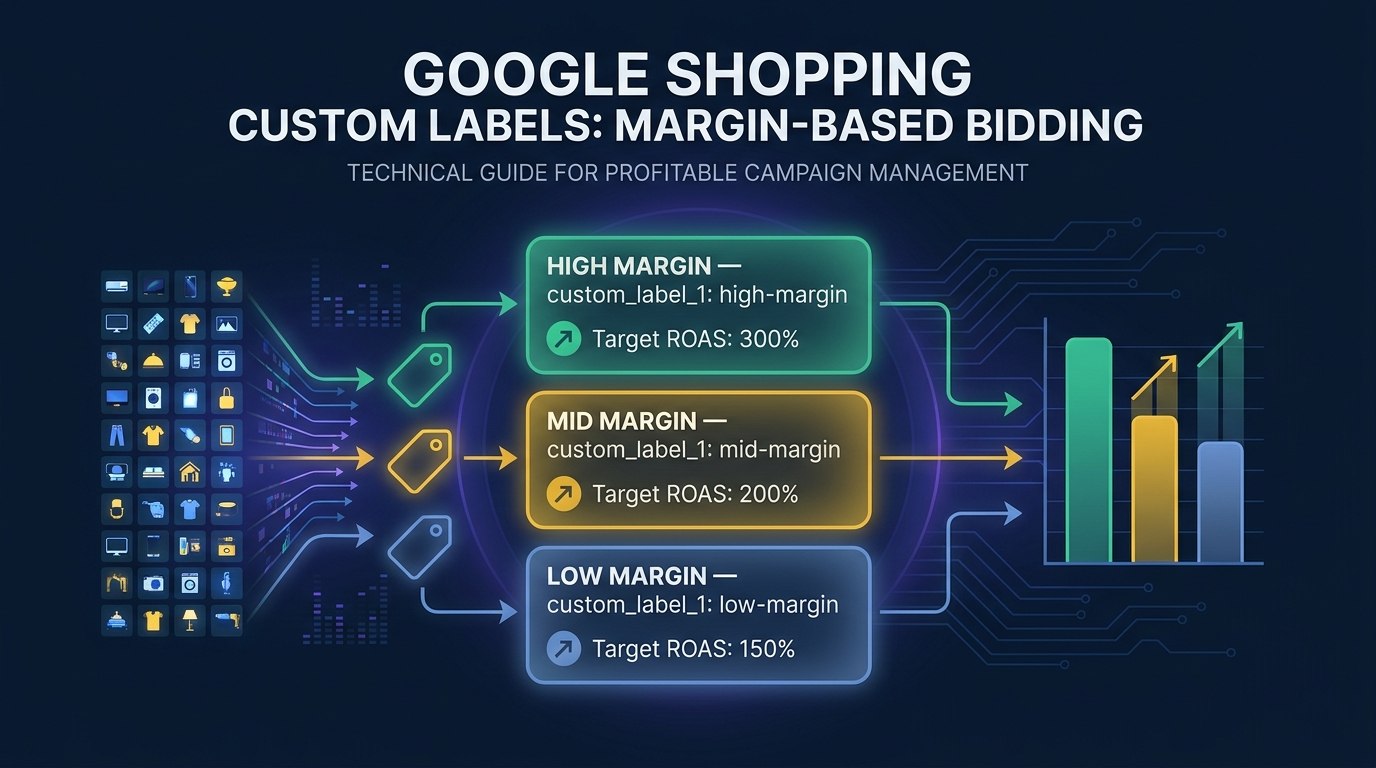
Google Shopping Custom Labels: A Merchant's Guide to Margin-Based Bidding
Custom labels let you tell Google's algorithm what it can't figure out on its own. Here's how to use them for margin-based bidding and smarter Google Shopping campaigns.
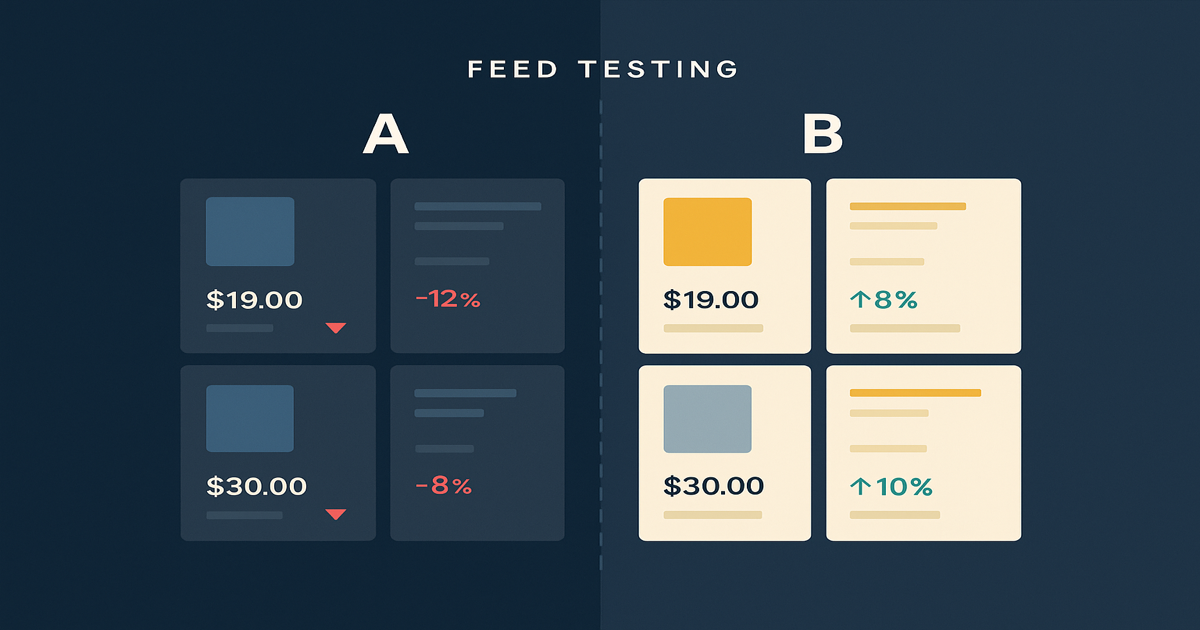
Your Shopify Product Feed Is a Testing Platform — Here's How to Use It
Most merchants treat their feed as a sync task. Here's how google shopping feed optimization with feed rules generates real marketing signal — and what to do with it.
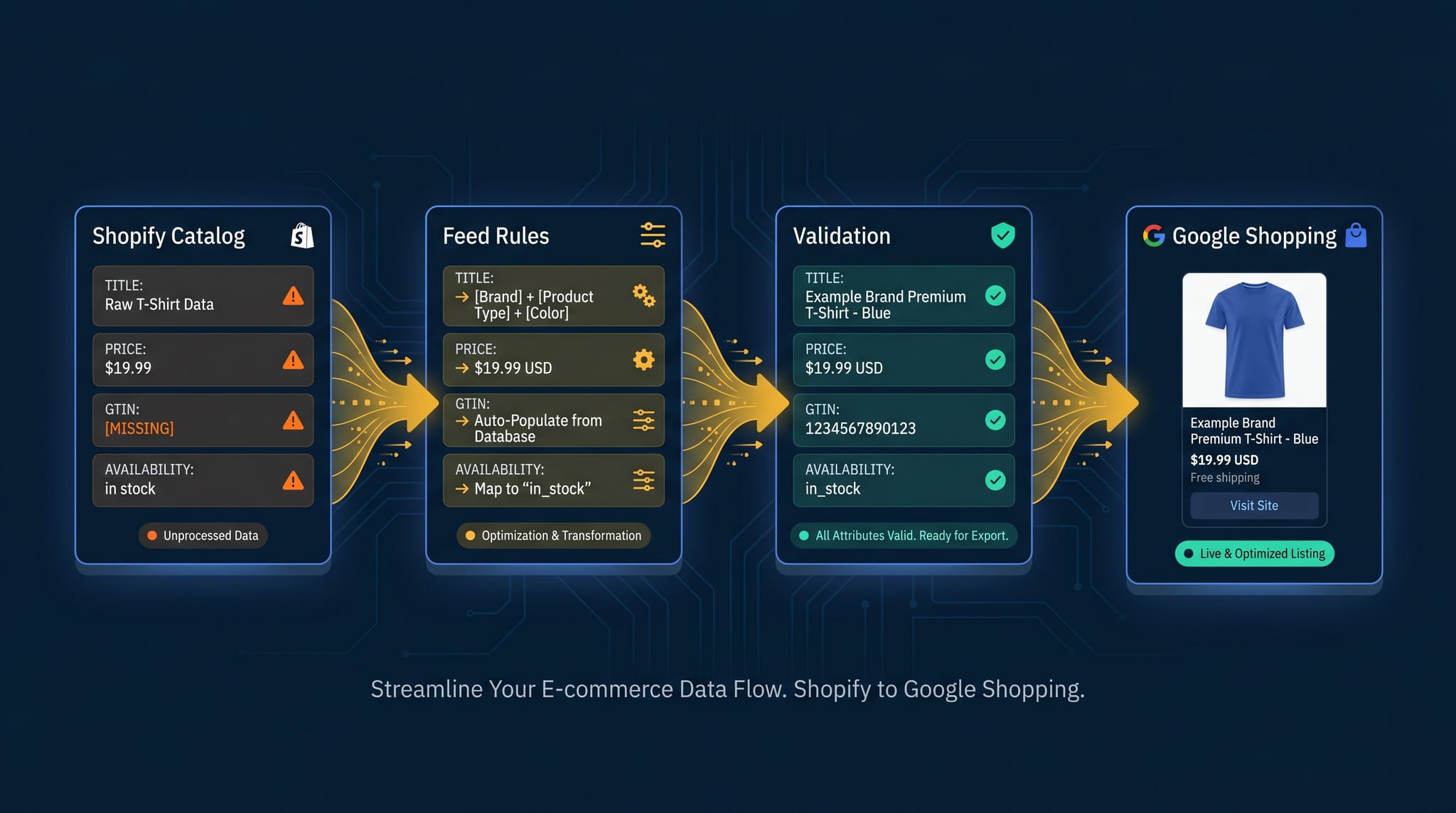
The Complete Guide to Product Feed Management for Shopify
Product feed management is more than syncing your catalog. Here's the complete guide to how it works, what breaks, and how Shopify merchants do it right.