Google's 500×500 Image Rule Starts January 31, 2027: Find the Shopify Products That Will Fail
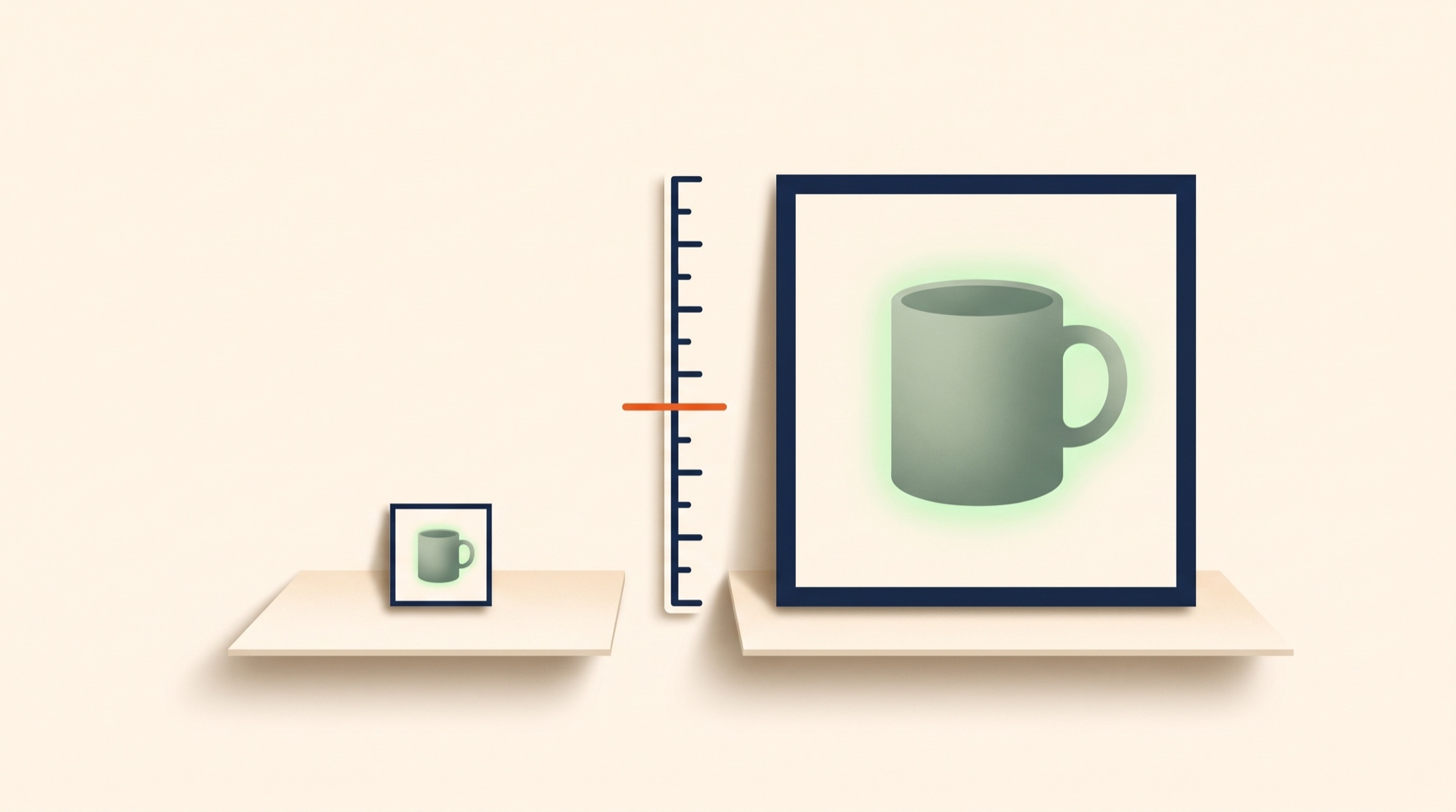
Google Merchant Center has two image rules in play right now, and they point in opposite directions. One got easier this October: a low-quality image no longer stops a product from showing. One gets stricter on January 31, 2027: every product image must be at least 500 × 500 pixels. Merchants are reading the first and relaxing about the second. This guide is about the second, which is the one that can take products out of Shopping, and specifically about how to find the Shopify products that will fail it before Google does.
The rule, verbatim
From Google Merchant Center’s help pages:
- Today’s minimums: “images must be at least 100 x 100 pixels” for non-apparel products and “at least 250 x 250 pixels” for apparel.
- The new minimum: “Submit images that are at least 500 x 500 for all products to be compliant with new requirements.”
- The date: “Enforcement of the new requirements will begin on January 31, 2027.”
- The recommendation: “We recommend that you provide images 1500x1500 pixels or above to ensure best performance in all listing formats.”
- The ceilings, unchanged: no image larger than 64 megapixels, no file larger than 16 MB. JPEG, WebP, PNG, GIF, BMP, and TIFF are accepted.
The rule is written against the image_link attribute, the main product image. Google’s fix page also notes that “in some cases, we may serve an optimized version of images below 500 x 500 when possible.” Do not plan around that sentence. Treat any product whose main image is under 500 pixels on either side as a product that stops showing on January 31.
The image-quality change is a different rule
In October 2026 Google’s help page for the image quality issue (blurry, pixelated, heavily compressed) changed to say: “Your product will continue to show in ads and free listings.” The issue is now advisory. That is good news and it is unrelated to pixel dimensions. A sharp, well-lit 400 × 400 product photo passes the quality check and fails the size check. If you saw the October headline and concluded image issues are now soft, that conclusion is half right.
Why Shopify stores have more of these than they think
Shopify keeps the original file you uploaded and serves scaled versions from its CDN on request. Your product feed sends Google the URL of the original. So the number that matters for this rule is the pixel size of the file someone uploaded, possibly years ago.
The usual sources of under-500 images in a Shopify catalog:
- Supplier and dropship imports. Catalog imports from a distributor often arrive with thumbnails, 300 × 300 or 400 × 400, because that is what the supplier’s own site used.
- Old products. Anything uploaded before your current photography standard. A store that has been on Shopify since 2019 almost certainly has a tail of these.
- Variant images. Product-level photos were reshot; the per-variant swatch images were not. If your feed maps variant images to
image_link(the right choice for color variants), the swatch is what Google measures. - Logos and placeholders. “Image coming soon” files, brand logos used as a stand-in for a product photo.
None of these are visible on your storefront, where Shopify’s theme scales everything to fit. They are only visible when you ask for the dimensions.
How to find them
1. Merchant Center (the authoritative list)
Google already knows which of your images are under the new minimum, and says so: “Starting July 2026, you’ll receive warnings on images larger than the minimum requirements but smaller than 500 x 500.” In Merchant Center, go to Products › Needs attention and filter for the image-size warnings. This is the list Google will act on, so it is the one to clear. Its limitation: it is per Merchant Center item, with no link back to which Shopify product or variant produced it.
2. Shopify (the fixable list)
Shopify’s bulk product CSV export does not include image dimensions. The Admin GraphQL API does: every product image carries width and height. If you or your developer are comfortable with the API, a query over products { media { ... on MediaImage { image { width height url } } } } gives you the full list in minutes. If you use an AI agent connected to your Shopify admin, this is a one-sentence request: “List every product image under 500 pixels on either side, with the product title and handle.”
3. Your feed (the mapping check)
Finding small files is half the problem. The other half is knowing which URL your feed actually sends for each product, because that is the image Google measures. A product can have a 2000-pixel hero photo and still send Google the 350-pixel variant swatch if that is what image_link is mapped to.
In Simple Product Feeds, Debug Rows shows the exact image_link value for any product after mapping and rules, so you can confirm which file Google receives. If your variant swatches are the small ones, you have two choices: re-upload the swatches at 500 pixels or more (the right fix for color variants, since Google wants the image to match the variant), or map image_link to the product’s main image and send the swatches as additional_image_link.
How to fix them
- Re-upload at 1500 × 1500 or larger. That is Google’s recommendation and it covers every listing format, including the larger tiles in AI Mode and Universal Cart. If the only source you have is a 400-pixel file, upscaling it will pass the size check but may fail the quality check; a reshoot is the real fix for anything that sells.
- Fix the mapping before the files. Run the Debug Rows check first. If the small image is only reaching Google because of a mapping choice, change the mapping and the problem disappears for every product at once.
- Exclude what you will not fix. A long tail of discontinued products with supplier thumbnails is not worth reshooting. A rule such as exclude when product tag is “legacy-thumbnail” keeps them out of the feed, which is better than letting Google disapprove them and lower your account’s issue rate.
- Re-run and re-check. After the fixes, regenerate the feed and give Merchant Center a day to re-crawl the new image URLs. The Needs attention count is your scoreboard.
Timeline
| Date | What happens |
|---|---|
| Since July 2026 | Merchant Center warns about images between the old minimum and 500 × 500 |
| October 2026 | Low image quality became advisory; products keep showing |
| January 31, 2027 | 500 × 500 minimum enforced for all products |
Ninety-three days from publication. For a 3,000-product store with a 10% tail of small images, that is 300 products to find, and most of them will take a mapping change or an exclusion rule rather than a photo shoot. Done in an afternoon if you start with the list.
Install Simple Product Feeds free to see exactly which image each product sends to Google, fix the mapping once, and exclude the rest with a rule.
Sources
- Google Merchant Center Help, How to fix: Image too small
- Google Merchant Center Help, Image link [image_link]
Ready to simplify your product feeds?
Simple Product Feeds connects your Shopify store to Google Shopping, Meta, and more — in minutes.
Install Simple Product FeedsFrequently Asked Questions
- What is Google's new product image size requirement?
- At least 500 × 500 pixels for all products, enforced from January 31, 2027, replacing the current 100 × 100 (non-apparel) and 250 × 250 (apparel) minimums. Google recommends 1500 × 1500 pixels or larger. Files stay capped at 64 megapixels and 16 MB.
- Will products with images under 500×500 be disapproved?
- Google's help page says the new requirement is enforced from January 31, 2027, and that in some cases it may serve an optimized version of a smaller image when possible. Do not rely on that. Treat any product whose main image is under 500 pixels on either side as one that stops showing on that date, and fix it before then.
- Why does my Shopify store have small product images when the site looks fine?
- Shopify keeps the original upload and serves scaled copies to your theme, so a 350-pixel supplier thumbnail looks acceptable on your storefront. Your feed sends Google the original file's URL, and that original is what Google measures. Dropship imports, old products, and per-variant swatch images are the usual sources.
- How do I find product images under 500 pixels in Shopify?
- Three ways: the Needs attention tab in Merchant Center lists the items Google has flagged; Shopify's Admin GraphQL API returns width and height for every product image (the CSV export does not); and Debug Rows in Simple Product Feeds shows which image URL each product actually sends to Google, which catches the case where a large photo exists but a small variant image is mapped to image_link.
- Does the October 2026 image quality change mean small images are fine now?
- No. The October change made the low image quality issue (blurry, pixelated) advisory, so those products keep showing. The 500 × 500 size minimum is a separate rule and is still enforced from January 31, 2027. A sharp 400 × 400 photo passes the quality check and fails the size check.
Related Articles

Google's Universal Cart Watches Your Price and Stock. Is Your Shopify Feed Ready?
Universal Cart launched October 15 in US Search and Gemini. It tracks price drops and restocks from your Merchant Center data, which makes feed freshness a shopper-facing promise. The five attributes to audit.
Google Merchant Center Disapproved Products: The Complete Fix Guide (Updated 2026)
Product disapproved in Google Merchant Center? Diagnose the exact cause and fix it fast — every disapproval type, the fields to check, and how to stop repeats. Updated for 2026 policies. Merchant Center. Step-by-step fixes for GTINs, price mismatches, image violations, missing attributes, and more.

How to Fix Google Merchant Center Disapprovals With an AI Agent
Most "fix disapprovals with AI" guides just mean pasting data into ChatGPT for suggestions. Here's the agent that reads your real Merchant Center disapprovals, previews the fix, and republishes — on your approval.
Google Shopping Product Feed for Shopify: Setup, Optimization, and Maintenance
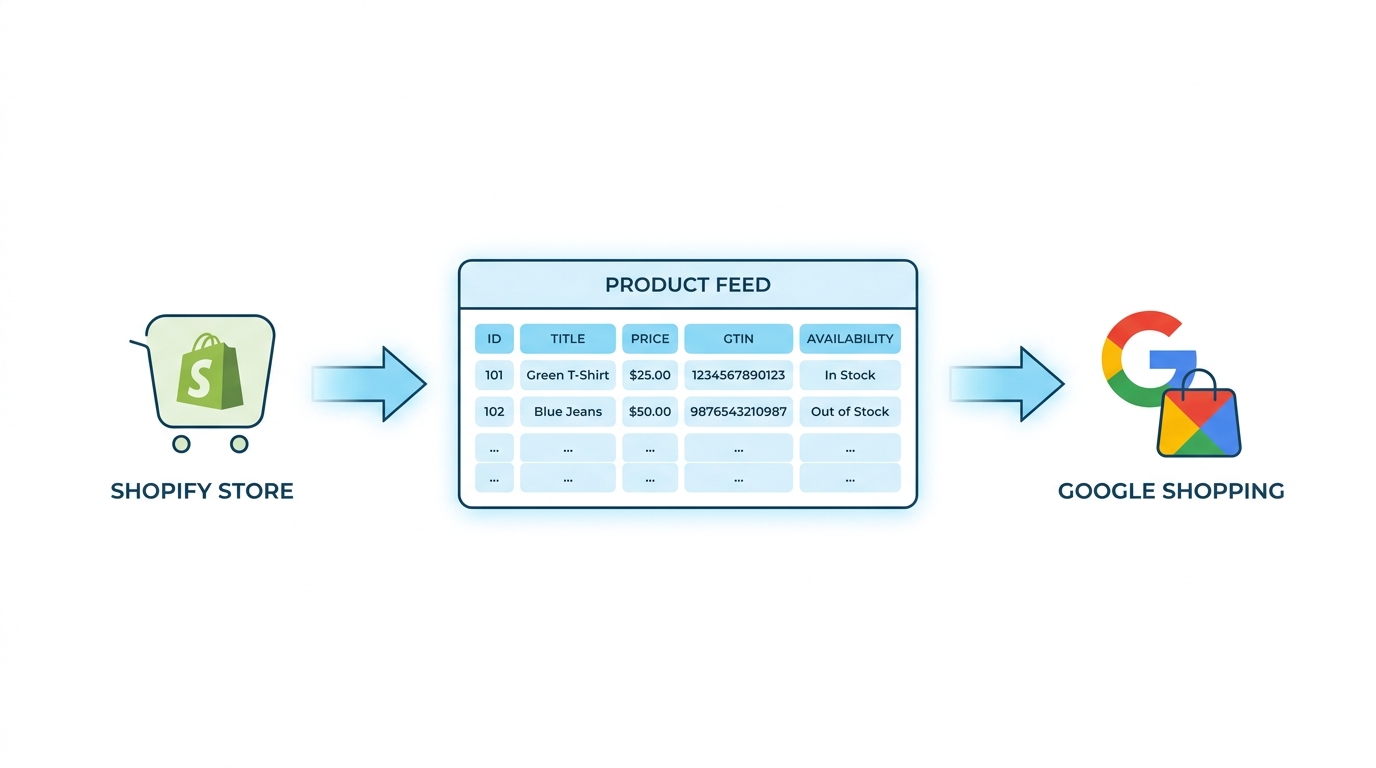
Complete Shopify guide to Google Shopping product feed setup: field mapping, title optimization, GTIN validation, variant handling, and ongoing maintenance.