ChatGPT and Your Shopify Product Feed: Getting Listed, and Getting It Managed

“ChatGPT product feed” is two questions wearing one search phrase. The first is how do I get my products into ChatGPT? The second is can I use ChatGPT to run my feed? Most guides answer the first with an enterprise feed-submission process that Shopify merchants do not need, and never answer the second at all. This article answers both, with what is actually true for a Shopify store in late October 2026.
The short version
- Getting listed in ChatGPT does not require a feed from you. Shopify’s Agentic Storefronts is active by default for eligible stores and feeds your catalog to ChatGPT, Google AI Mode and Gemini, Microsoft Copilot, and Meta. The purchase completes on your own checkout. You manage it under Sales channels › Agentic in your admin.
- OpenAI’s product feed spec exists, but it is for merchants without a platform doing it for them. If you are on Shopify you are covered by the platform integration and do not submit a file.
- What you can do with ChatGPT today is connect it as your feed operator. ChatGPT’s custom connectors let it read and fix your Merchant Center feed through Simple Product Feeds in plain language. That is the part nobody is writing about, and it is the part that actually changes your week.
Part 1: getting your products into ChatGPT
What Shopify does for you
Shopify’s own help documentation states it plainly: “Agentic storefronts is active by default for eligible stores.” Your products are made available to AI channels through Shopify Catalog, Shopify’s structured product data layer. For ChatGPT specifically, the shopper discovers your product in the conversation and then, in Shopify’s words, “complete[s] their purchase on your online store checkout in a ChatGPT in-app browser, or in a new tab when customers use ChatGPT web.”
Orders land in your admin with channel or referrer attribution, so you can see which sales came from ChatGPT. You stay the merchant of record. You agree to the Agentic Storefronts supplemental terms once, and you can turn individual channels on or off under Sales channels › Agentic.
So the “how do I submit my feed to ChatGPT” question has a short answer for Shopify stores: you don’t. The platform already did.
What OpenAI’s own feed spec asks for, and why it still matters to you
For merchants outside a platform integration, OpenAI publishes a product feed specification. It accepts JSONL or delimited files (CSV/TSV), one row per purchasable item or variant, with nine required fields: item_id, title, description, url, brand, seller_name, image_url, availability, and price. Optional fields include additional_image_urls, review_count, and star_rating, which OpenAI says improve ranking, relevance, and trust. Product and image URLs must be publicly accessible.
Read that list again. It is the Google Shopping feed with the labels changed. Title, description, brand, image, availability, price. Whether your products are read by ChatGPT through Shopify Catalog or by Google through Merchant Center, the same handful of attributes decide whether an AI assistant understands what you sell and shows it to the right person.
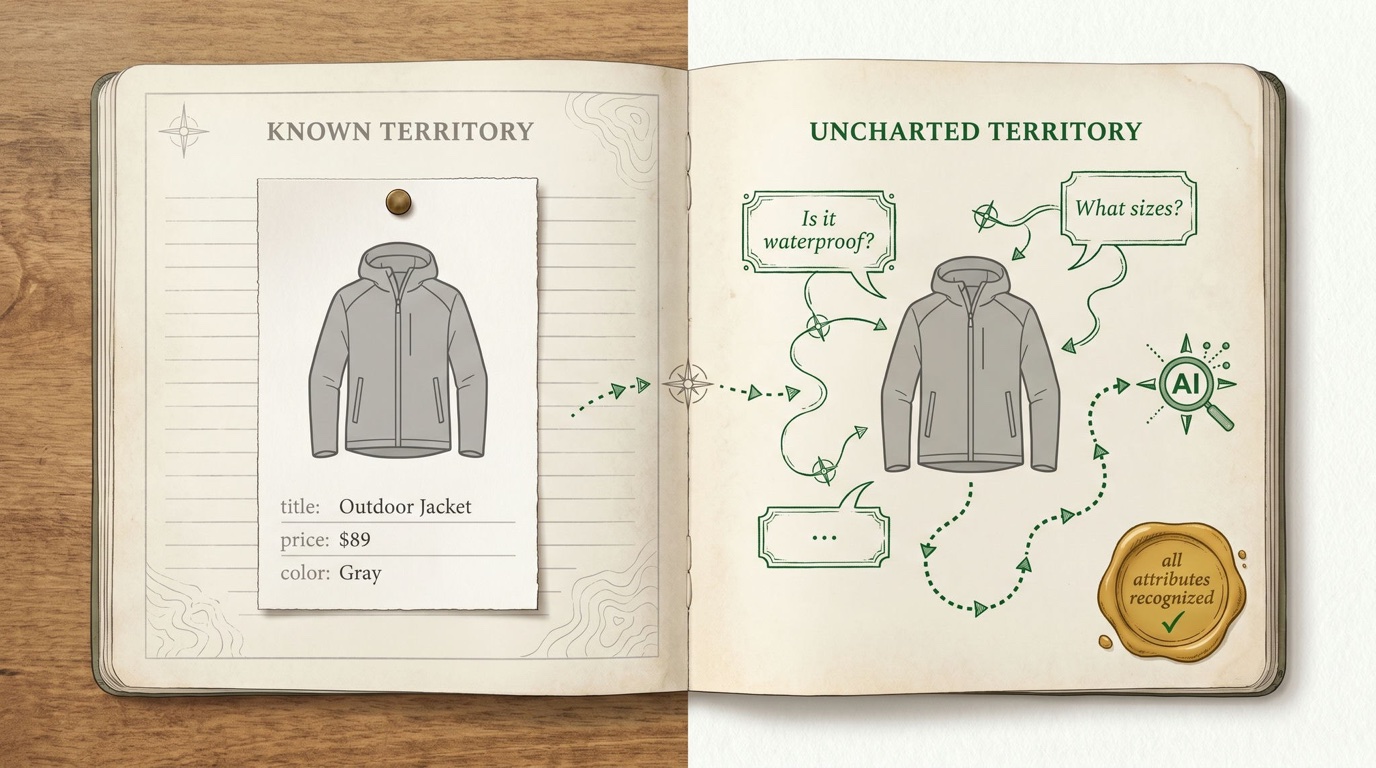
That is the practical point for a Shopify merchant: Shopify Catalog has minimum requirements for inclusion (a title, a description, an image, a price, available inventory), but minimum is not good. A product titled “Blue - M” with a two-line description meets the bar and will lose every conversational comparison to a competitor whose title says what the thing is. The work that makes your Google feed perform is the same work that makes your products legible in ChatGPT. If you have already been fixing titles, categories, and conversational attributes for Merchant Center, you are most of the way there.
Where Channable’s guide stops
Channable published a “how to sell on ChatGPT” guide on October 27. It is written for the enterprise merchant who runs their own feed pipeline and will submit OpenAI’s feed directly. That is a real audience. It is not most Shopify stores, who are already in ChatGPT through the platform and whose actual question is how to make the listing good and how to spend less time on feed maintenance. Which brings us to the second half.
Part 2: connecting ChatGPT as your feed operator
This is the other meaning of “ChatGPT product feed,” and it is the one with a payoff this week.
ChatGPT supports custom connectors: remote MCP (Model Context Protocol) servers you add in Settings, which give ChatGPT tools it can call during a conversation. Simple Product Feeds runs a hosted MCP server at https://app.simpleproductfeeds.com/v1/mcp with nineteen tools covering feed health, findings, row-level debugging, rules, overrides, bulk product actions, and publishing. Connect it and you can ask ChatGPT, in English, to audit your feed, explain why a product is disapproved, draft the rule that fixes a whole class of products, show you the before and after, and publish once you say yes.
Who can do it
According to OpenAI’s help documentation, custom MCP connectors are available on ChatGPT Business, Enterprise, and Edu, and on Plus and Pro accounts once you enable Developer mode (Settings › Connectors › Advanced). Free accounts cannot add custom connectors. ChatGPT only accepts connectors that use OAuth or no authentication, so API-key-in-a-header setups do not work here. Simple Product Feeds’ endpoint uses the standard MCP OAuth flow, with the discovery and client-registration endpoints ChatGPT expects, which is the same flow claude.ai uses for its one-click connect.
How to connect it
- In ChatGPT, open Settings › Connectors. On Plus or Pro, open Advanced and turn on Developer mode.
- Choose Add custom MCP server (the wording varies by plan; on some accounts it is under Plugins). Enter the URL
https://app.simpleproductfeeds.com/v1/mcp, give it a name, and acknowledge the risk notice. - When ChatGPT starts the authorization flow, sign in to Simple Product Feeds, pick the store, and choose read-only or read & write.
- Enable the connector in a chat and ask it something.
If you want to start without a ChatGPT paid plan, the same endpoint connects to claude.ai, Claude Code, Codex, and Cursor. The full walkthrough is in How to connect an AI agent to your Shopify product feed.
Your first conversation, read-only
Start read-only. An illustrative first session (the numbers are made up; yours will differ):
You: Audit my Google Shopping feed. What is keeping products out of Shopping?
ChatGPT calls
spf_feed_healthandspf_feed_findings, then reports: 2,118 of 2,340 variants are in the feed. 41 have a missing GTIN warning, 17 are excluded by a rule you wrote in 2024 that targets a product type you renamed, and 6 have titles under 15 characters.You: Show me one of the excluded 17 and why.
ChatGPT calls
spf_debug_rowand walks you through the row’s lineage: source value, mapping, the rule that fired, the final output.
Nothing changed. You learned something about your feed that would have taken a morning of clicking, and you can decide whether the 2024 rule should still exist.
When you let it write
Every write in Simple Product Feeds is preview-first. ChatGPT proposes a rule, the server returns a preview of the exact rows that would change, and nothing publishes until you confirm with that preview token. Each change is recorded in the store’s audit trail with the agent named as the actor. You can revoke the connection in the app under Settings › AI Agents at any time.
The things merchants actually ask for, once they trust it:
- “Add ‘for [product type]’ to every title that is just a model number.” A rule, previewed on 212 rows, applied in one confirmation.
- “Exclude everything with zero inventory from the Pinterest feed but keep it in Google.” A per-feed rule; the Google feed is untouched.
- “Set custom_label_0 by margin band so I can bid differently.” The margin-tier tool, which writes the labels from your cost data.
- “What changed in the feed this week?” A read of the audit trail and the last runs.
The honest comparison
| Selling in ChatGPT | ChatGPT running your feed | |
|---|---|---|
| Whose agent | The shopper’s | Yours |
| What it reads | Shopify Catalog (via Agentic Storefronts) | Your Merchant Center feed, through Simple Product Feeds |
| What you do | Keep product data good; manage under Sales channels › Agentic | Connect once; ask in plain language; confirm writes |
| Cost | Standard processing; no transaction fee for discovery | A paid ChatGPT plan; Simple Product Feeds from free |
| What improves | Whether shoppers find and buy you in AI chats | How fast and how well you keep every feed healthy |
Most stores want both. The first is mostly done for you. The second is the one where an hour today saves you hours every month.
Install Simple Product Feeds free and connect ChatGPT, Claude, or Codex to your feed in a couple of minutes.
Sources
- Shopify Help Center, Agentic storefronts and Agentic plan setup
- OpenAI, Commerce key concepts and the product feed specification
- OpenAI Help, Developer mode and custom MCP connectors in ChatGPT
Ready to simplify your product feeds?
Simple Product Feeds connects your Shopify store to Google Shopping, Meta, and more — in minutes.
Install Simple Product FeedsFrequently Asked Questions
- Do I need to submit a product feed to ChatGPT for my Shopify store?
- No. Shopify's Agentic Storefronts is active by default for eligible stores and makes your catalog available to ChatGPT through Shopify Catalog. Shoppers find your products in the conversation and complete the purchase on your own checkout. You manage the channels under Sales channels › Agentic in your Shopify admin. OpenAI's product feed specification is for merchants without a platform integration.
- What fields does OpenAI's ChatGPT product feed require?
- Nine: item_id, title, description, url, brand, seller_name, image_url, availability, and price, one row per purchasable item or variant, in JSONL or CSV/TSV. Optional fields such as additional_image_urls, review_count, and star_rating improve ranking and trust. It is essentially the Google Shopping feed with different labels, so improving one improves the other.
- Can ChatGPT manage my Google Shopping feed?
- Yes, through a custom MCP connector. Simple Product Feeds runs a hosted MCP server that ChatGPT can connect to with OAuth. Once connected, ChatGPT can audit the feed, explain why a product is excluded or disapproved, draft rules, preview the exact rows a change affects, and publish only after you confirm. Every write is logged in the store's audit trail.
- Which ChatGPT plans support custom MCP connectors?
- Per OpenAI's help documentation, Business, Enterprise, and Edu plans support custom connectors, and Plus and Pro accounts can add them after enabling Developer mode under Settings › Connectors › Advanced. Free accounts cannot. ChatGPT only accepts connectors that use OAuth or no authentication.
- Is it safe to let ChatGPT change my product feed?
- Changes are preview-first: the agent proposes, the server returns the exact before-and-after rows, and nothing publishes until you confirm. You can connect read-only until you trust the suggestions, and you can revoke the connection at any time in the app under Settings › AI Agents.
Related Articles

How to Connect an AI Agent to Your Shopify Product Feed
There are two things people mean by connecting an AI agent to your Shopify product feed — and the operator one (audit, fix disapprovals, publish) is the one that saves you time. How to connect Claude, ChatGPT, and more, safely.

AI Readiness Score for Shopify Product Feeds: What It Measures, Where a Real Feed Lands, and How to Fix It
Channable says 77% of merchants' feeds fail its AI readiness audit. Here is what a feed-level score measures (14 attributes, from Google's own spec), a real audit of a 3,500-variant Shopify catalog that carries 4 of them, and how to run the audit and close each gap yourself.
Google Conversational Attributes Explained: The 6 New Merchant Center Fields (and How to Fill Them)
What Google's conversational attributes are, what each of the six fields carries, how to submit them via a supplemental feed, and what it costs to generate question_and_answer at scale. From a real upload, with the gotchas.

How to Audit Your Shopify Product Feed With an AI Agent
Manual feed-audit checklists don't get run, and free checkers don't know your feed. Here's how to audit your Shopify product feed by asking an AI agent — grounded in your live data, ranked by impact, and ready to fix.