Google Merchant Center Disapproved Products: The Complete Fix Guide

Google Merchant Center Disapproved Products: The Complete Fix Guide
If you have google merchant center disapproved products sitting in your account right now, they’re not just an admin problem — they’re silent revenue leaks. Every disapproved product is a SKU that’s been cut from Shopping ads and free listings, serving no impressions, generating zero clicks. Google removes it quietly. No email. No alert in your Shopify admin. Just a gap in your traffic you might not notice for weeks.
This guide covers every major disapproval type you’ll encounter, the exact fix for each, and how to build a monitoring system that catches issues before they compound. If you’re here because something broke, start with Section 2: The 8 Most Common Disapproval Types. If you want to prevent this from happening again, read the whole thing.
Why Disapprovals Happen Silently (and What They Cost You)
Google Merchant Center operates on a data quality contract: your feed makes claims (price, availability, description, condition), and Google holds you to those claims by comparing them against your live product pages. When the data doesn’t match — or when it violates one of Google’s policies — the product gets disapproved.
The problem is that the detection happens on Google’s schedule, not yours. Feed fetches happen roughly every 24 hours. Policy sweeps run independently. You might fix an issue today, resubmit tomorrow, and still see disapprovals from last week sitting in Diagnostics.
What disapprovals actually cost
The math is straightforward: if 50 products are disapproved in a 500-SKU catalog, you’ve lost 10% of your potential Shopping surface area. If those 50 products include your best-selling items — which is common, because high-traffic products are often more scrutinized — the revenue impact is disproportionate.
For a merchant doing $50K/month in Shopping revenue, a 10% disapproval rate on core products can translate to $3–8K in lost monthly revenue. The range depends on which products are affected, but the pattern is consistent: disapprovals cluster on products with incomplete data, and products with incomplete data are often products you’ve added recently or products you haven’t optimized. Those are frequently the ones you’re actively promoting.
Why most merchants miss it
There’s no push notification system for disapprovals. GMC has an email alert option, but it’s off by default and covers only account-level suspensions — not individual product disapprovals. Merchants typically discover disapproval spikes in one of three ways:
- A drop in Shopping impressions that finally shows up in Google Ads reports
- A routine GMC check (rare)
- An agency or tool flags it
The fix is building a check into your routine. We’ll cover that in Section 3: The Systematic Audit.
The 8 Most Common Disapproval Types
Google’s policy documentation lists dozens of potential disapproval reasons, but in practice, the vast majority of disapprovals fall into eight categories. Here’s each one — what triggers it, how to diagnose it in GMC, and the exact fix.
1. GTIN Errors
What triggers it: You’ve submitted a gtin value that doesn’t match Google’s product database, or you’ve submitted no GTIN for a product that Google knows has one. GTINs include UPC, EAN, JAN, and ISBN codes. Google cross-references submitted GTINs against its product catalog — if the code doesn’t match the brand + title you’ve submitted, the product gets flagged.
How to diagnose it: In GMC Diagnostics, look for “Incorrect product identifier” or “Missing GTIN” under the Item Issues tab. Click the issue to see affected example products, and check what GTIN you submitted vs. what the brand’s official product page shows.
The exact fix:
- Pull the manufacturer’s correct GTIN from the brand’s official website, Amazon’s listing, or a barcode database like Open Food Facts or 1WorldSync.
- Update your product metafields or Shopify variant barcodes with the correct value.
- If you manufacture the products yourself and there’s genuinely no GTIN, set
identifier_exists: falsein your feed — this tells Google the product has no GTIN, which is valid. Don’t leave the field blank. - Resubmit the feed. GTIN corrections typically resolve within 1–3 business days.
Prevention: Use product feed optimization rules to validate GTIN formats before they reach Google — 12-digit UPCs and 13-digit EANs can be caught at the feed level.
2. Price Mismatch
What triggers it: The price in your feed doesn’t match the price on the product landing page. Google crawls your landing pages independently to verify price parity. A 1-cent difference — even rounding — can trigger a disapproval. This is especially common with Shopify stores that use multi-currency, sales that expire overnight, or price changes that update in Shopify before the feed re-fetches.
How to diagnose it: Look for “Price unavailable” or “Incorrect price” in GMC Diagnostics. The example products will show the feed price vs. the detected landing page price. The gap is often small — a dollar rounding or a sale that ended.
The exact fix:
- Check the current price on your live product page vs. what’s in your feed.
- If your feed is stale (common with daily-fetch setups), force a re-fetch: GMC → Settings → Data sources → Fetch now.
- If you’re running sales, make sure the
sale_priceandsale_price_effective_datefields are correctly formatted in your feed. An expired sale_price that’s still in the feed will conflict with the current page price. - For multi-currency stores: submit prices in the currency matching your GMC target country. Shopify Markets merchants often need to set up separate feeds per market.
Prevention: Increase feed fetch frequency. GMC allows fetches every 4 hours on scheduled fetch data sources. If you run frequent promotions, a 4-hour refresh window significantly reduces price mismatch exposure.
3. Image Violations
What triggers it: Your product image doesn’t meet Google’s image requirements. The most common violations: images smaller than 100×100 pixels (or 250×250 for apparel), images with promotional text or watermarks overlaid, placeholder images, images that show something other than the product, or images served from a URL that returns an error.
How to diagnose it: “Invalid image” or “Image too small” in GMC Diagnostics. Google often shows a thumbnail of the flagged image — check it visually. Broken image URLs show up as HTTP error codes in the raw feed.
The exact fix:
- Size violations: Upload higher-resolution product images. Google recommends at least 800×800px for optimal performance (and 1500×1500px for apparel).
- Overlay text/watermarks: Remove promotional badges (“Sale!”, “New!”, “20% Off”) from the product image itself. Overlays belong in the ad, not the product image.
- Broken URLs: Check whether your CDN or Shopify image URL structure changed. Shopify recently migrated to cdn.shopify.com subdomain structures — old hardcoded image URLs can break silently.
- Wrong image: Make sure your feed is pulling the primary product image, not a variant swatch or packaging image.
Prevention: Submit a secondary additional_image_link field with 3–5 alternate images. If your primary image gets flagged, having alternates gives Google a fallback and demonstrates catalog quality.
4. Missing Required Attributes
What triggers it: A required field is absent or empty. For most product categories, required fields include id, title, description, link, image_link, price, availability, and condition. Apparel products additionally require color, size, and gender. Some categories require brand.
How to diagnose it: “Missing required attribute” in GMC Diagnostics, with the specific attribute listed. Sort by affected products to prioritize — if 200 products are missing condition, that’s a systematic feed issue, not a product-by-product fix.
The exact fix:
- Condition: Add
condition: newto your feed rules for all products (most Shopify merchants sell new goods; this is a one-time rule).usedandrefurbishedrequire specific formatting. - Brand: Map brand to your Shopify vendor field, or set a default brand value for your store if you’re the manufacturer.
- Color/Size (apparel): Pull from Shopify product options. If your variants are structured as option1 = Size, option2 = Color, map those explicitly in your feed configuration.
- GTIN (as brand qualifier): If brand + title are present but GTIN is missing, Google may still approve — but including GTIN significantly improves match rate and ad performance.
Prevention: Run a feed audit before submitting to Google. A good feed testing workflow — detailed in feed testing — catches missing attributes before they become disapprovals.
5. Availability Conflicts
What triggers it: The availability in your feed (in_stock, out_of_stock, preorder) doesn’t match what Google detects on your landing page. Shopify out-of-stock products with “continue selling when out of stock” enabled are especially prone to this — the product shows as purchasable on the page, but the feed says out_of_stock.
How to diagnose it: “Availability unavailable” or “Incorrect availability” in GMC Diagnostics. Also check for products that are preorder in your feed but show immediate delivery language on the page.
The exact fix:
- Reconcile your Shopify inventory settings. If you’re using
continue selling when out of stock, your feed availability should bein_stock— the product is technically purchasable. - For preorder products: make sure the landing page includes the preorder date and availability language Google expects. The page should clearly indicate the ship date.
- For products you’ve discontinued: if they’re still in your feed as
in_stockbut have been archived in Shopify, the URL may redirect or 404. Remove them from the feed or set them toout_of_stock.
6. Policy Violations
What triggers it: Your product or its content violates one of Google’s Shopping policies. Common violations: health/medical claims without proper disclaimers, weight loss products, certain supplements, gambling accessories, and some firearms-adjacent products. Landing page content matters here — a product description that makes unsubstantiated health claims can get the product (and in repeat cases, the account) flagged.
How to diagnose it: “Policy violation” in GMC Diagnostics. The reason is usually vague — “Dangerous products” or “Healthcare” — because Google doesn’t detail exactly which phrase triggered it. Check the product’s title, description, and landing page copy.
The exact fix:
- Review Google’s prohibited and restricted products policy for your specific category.
- Remove or rephrase any claims on the landing page that imply medical efficacy, guaranteed results, or weight loss.
- After editing the product page, request a manual review in GMC: Diagnostics → click the issue → “Request Review.” Manual reviews take 3–7 business days.
- If the product is in a restricted category (not prohibited), review the restricted products policy for your country — some categories require certification or specific landing page language to qualify.
Note: Repeated policy violations can escalate to account suspension. If you’re seeing policy flags across many products, prioritize resolving them — account-level suspensions are significantly harder to reverse.
7. Landing Page Issues
What triggers it: Google can’t crawl your landing page, the page returns an error, the page is behind a login wall, or the page content doesn’t match the product data in your feed. Common causes: Shopify maintenance mode, password-protected storefronts, products linking to a collection page instead of the product page, or redirects that break Googlebot.
How to diagnose it: “Crawl errors” or “Landing page not crawlable” in GMC Diagnostics. Test your product URLs manually — open an incognito browser and navigate to the exact URL in your feed. If you see a password prompt, maintenance page, or 404, that’s your issue.
The exact fix:
- Make sure your Shopify storefront is publicly accessible. Shopify’s “Coming Soon” password mode disables Google’s ability to crawl product pages.
- Verify all product URLs in your feed resolve to the correct product page without login requirements.
- If your store uses a custom domain with a recent SSL certificate issue, fix the SSL first — GMC will refuse to crawl HTTPS pages with certificate errors.
- For redirect chains: simplify. A product URL that redirects → redirects → redirects is more likely to timeout or fail. Update canonical URLs in your feed directly.
8. Restricted Products
What triggers it: Your product falls into a category that requires additional verification, certification, or targeting restrictions. Examples: alcohol (requires country targeting and age verification), prescription items, gambling products, political content, copyrighted material, and certain financial products.
How to diagnose it: “Restricted product” or “Unsupported shopping content” in GMC Diagnostics. The issue note usually names the restriction category.
The exact fix:
- Check Google’s restricted products list for your category. Some restrictions are resolvable — alcohol merchants can apply for approval, and some supplement categories have compliant language requirements.
- For products that are genuinely non-approvable in Shopping, consider removing them from the feed to avoid dragging down your account’s health score.
- Some restricted categories allow Shopping ads with additional targeting restrictions (e.g., age-gating). Work with your Google Ads account settings to enable these if eligible.
How to Audit Your Feed Systematically
The GMC Diagnostics tab is your primary audit tool. Here’s how to use it efficiently:
The GMC Diagnostics walkthrough
-
Navigate to Diagnostics: In Google Merchant Center, go to Products → Diagnostics. You’ll see three tabs: Items, Feeds, and Shipping.
-
Start with the Items tab. This shows every product-level issue, grouped by issue type. The columns show:
- Issue name — the disapproval reason
- Affected items — how many products have this issue
- Severity — whether it’s a disapproval or just a warning
-
Sort by Affected Items, descending. Fix the highest-volume issue first — one fix type can resolve hundreds of products simultaneously. A 200-product GTIN error that’s solvable with a feed rule is higher priority than a 3-product policy violation requiring manual review.
-
Click each issue to see example products. Google shows you the specific products affected and sometimes the detected vs. submitted values. This tells you whether the issue is systematic (whole catalog) or isolated (specific product variants).
-
Check the Feeds tab. This shows feed-level processing errors — upload failures, XML parse errors, field format violations. These often block entire data sources and affect more products than item-level issues.
-
Set a weekly review cadence. Block 20 minutes every Monday to check Diagnostics. New disapprovals accumulate faster than you think — a promotion that changes prices, a Shopify app that injects text into product descriptions, a new product category that needs different attributes. Weekly checks prevent week-long blind spots.
What to do after you fix something
After applying a fix in your feed:
- Trigger a manual re-fetch in GMC: Settings → Data sources → your feed → Fetch now.
- Wait for the fetch to complete (usually 15–60 minutes).
- Return to Diagnostics and check whether the issue count dropped.
- For policy-related disapprovals, click “Request Review” after the fix — manual reviews are faster than waiting for Google’s next automated sweep.
SPF’s GMC Issue Tracking — Product-Level Disapprovals Without Leaving Shopify
Switching between Shopify and Google Merchant Center to diagnose disapprovals is friction that most merchants avoid — which is exactly why disapprovals accumulate. Simple Product Feeds surfaces product-level GMC issues directly in your Shopify admin.
Instead of navigating to GMC Diagnostics, finding the issue, noting the affected SKU, switching to Shopify, searching for the product, and then making the edit — SPF shows you the problem and the product in one place. You see which products have active google merchant center disapproved products issues, what the issue type is, and what attribute needs to change.
SPF also gives you feed rules that prevent common disapprovals before they happen:
- Attribute fill rules: Automatically set
condition: newfor all products, map brand from your Shopify vendor field, fill inidentifier_exists: falsefor products without GTINs. - Price sync validation: Ensure your feed prices match your live storefront prices before the feed reaches Google.
- Image URL validation: Flag images that are below minimum size or served from broken URLs.
- Availability mapping: Correctly translate Shopify inventory states (in stock, out of stock, continue selling) to valid GMC availability values.
These rules run at the feed level — before Google ever sees the data — which means fewer disapprovals reach the Diagnostics tab in the first place.
Preventing Disapprovals Before They Happen
The most efficient disapproval strategy is the one that avoids them. Here’s what to build into your ongoing workflow:
1. Validate your feed before submitting. Run a feed testing check that catches format errors, missing required attributes, and URL resolution failures before the feed hits Google. Catching a missing condition field at test time saves you the 3-day disapproval resolution cycle.
2. Synchronize price updates with feed refreshes. If you run flash sales or frequently change prices, increase your feed fetch frequency to 4-hour intervals. The gap between a price change in Shopify and the feed update is your exposure window for price mismatch disapprovals.
3. Audit new product additions. When you add products in bulk — from a new collection, a CSV import, or a supplier data drop — run them through your feed validation before activating them in GMC. Bulk imports frequently have GTIN gaps, missing brands, or category attributes that Google requires.
4. Monitor impressions by product. A product that drops from 500 impressions/week to zero didn’t just stop converting — it’s probably disapproved. Segment your Google Ads Shopping performance by item ID and set alerts for products with sudden zero-impression drops.
5. Read the policy update emails. Google updates its Shopping policies periodically, and products that were previously approved can be retroactively disapproved when policy changes. GMC sends policy update notifications — actually read them and check whether any categories you sell in are affected.
6. Feed-level product feed optimization as preventive maintenance. A well-optimized feed — complete attributes, accurate GTINs, high-resolution images, clean prices — has fewer failure surfaces. Optimization isn’t just about ad performance; it’s also about staying approved.
Fix Your Disapprovals. Then Prevent the Next Ones.
Google Merchant Center disapproved products are fixable — every one of them has a specific cause and a specific solution. The challenge isn’t the fix itself; it’s building a system that catches them fast enough to minimize revenue impact.
Start with GMC Diagnostics today. Sort by affected items. Fix the highest-volume issue type first. Then set a weekly review cadence so new disapprovals don’t accumulate for weeks before you notice them.
If you want to skip the tab-switching and see product-level GMC issues directly in your Shopify admin — with built-in feed rules that prevent the most common disapprovals — install Simple Product Feeds from the Shopify App Store. It takes about 10 minutes to set up and starts surfacing feed issues immediately.
Ready to simplify your product feeds?
Simple Product Feeds connects your Shopify store to Google Shopping, Meta, and more — in minutes.
Install Simple Product FeedsFrequently Asked Questions
- Why are my products disapproved in Google Merchant Center?
- Products are disapproved when feed data violates Google's requirements — common causes include incorrect or missing GTINs, price mismatches between the feed and the live product page, images too small or with overlays, missing required attributes like brand or condition, and policy violations. Google Merchant Center Diagnostics shows all disapprovals by type and the number of products affected.
- How long does it take for Google to re-approve products after a fix?
- After you fix the issue and resubmit your feed, Google typically reviews the affected products within 3–5 business days. Some fixes — particularly price mismatches — may resolve within 24 hours once the feed re-fetches. Manual review requests via the 'Request Review' button in GMC can speed this up for policy-related disapprovals.
- What is the fastest way to see all disapproved products in Google Merchant Center?
- Go to Google Merchant Center → Products → Diagnostics. The Issues tab shows every disapproval type, the number of products affected, and links to example affected items. Filter by 'Disapproved' to see only active issues. Start with the highest-volume issue — one fix type can resolve dozens or hundreds of products at once.
- What happens to my Shopping ads when products are disapproved?
- Disapproved products stop serving ads immediately and are excluded from all Google Shopping surfaces — paid Shopping ads, free listings, Google Images, and Google Lens. If a significant portion of your catalog is disapproved, you'll see a drop in impressions and revenue. The impact is proportional: 10 disapproved products in a 1,000-SKU catalog is minor; 200 disapproved products is a real revenue problem.
- Can Simple Product Feeds help prevent Google Merchant Center disapprovals?
- Yes. SPF's feed rules let you fill missing required attributes, fix GTIN mapping, standardize condition and availability values, and validate field formats before the feed reaches Google. SPF also surfaces product-level GMC issues directly in your Shopify admin, so you can diagnose and fix disapprovals without switching tabs.
Related Articles
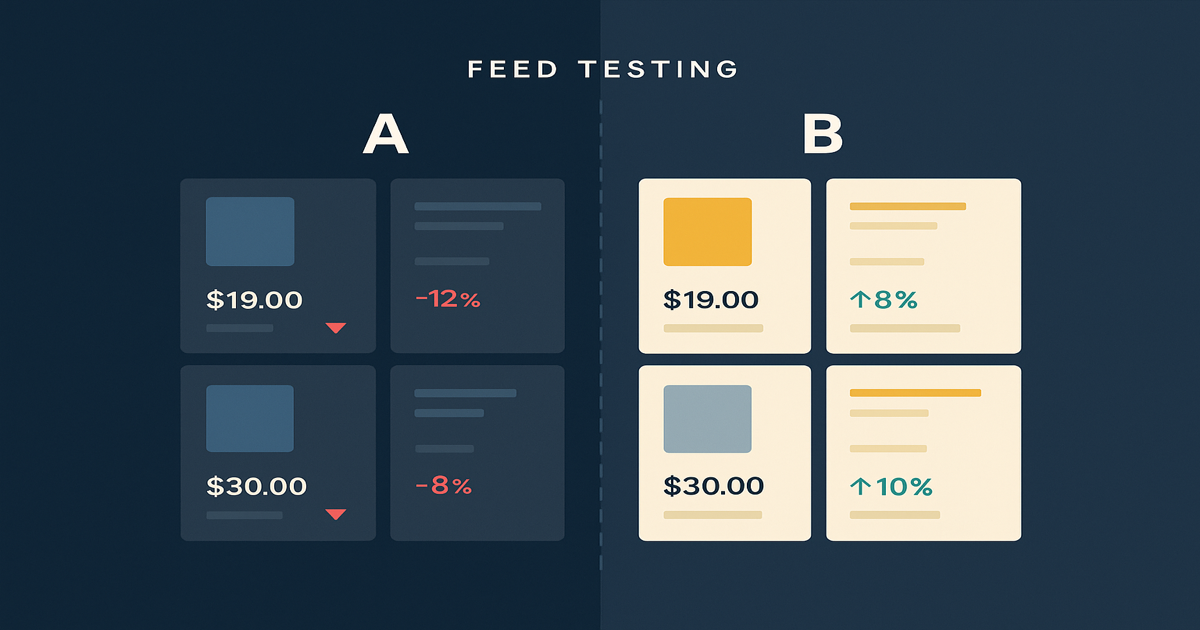
Your Shopify Product Feed Is a Testing Platform — Here's How to Use It
Most merchants treat their feed as a sync task. Here's how google shopping feed optimization with feed rules generates real marketing signal — and what to do with it.
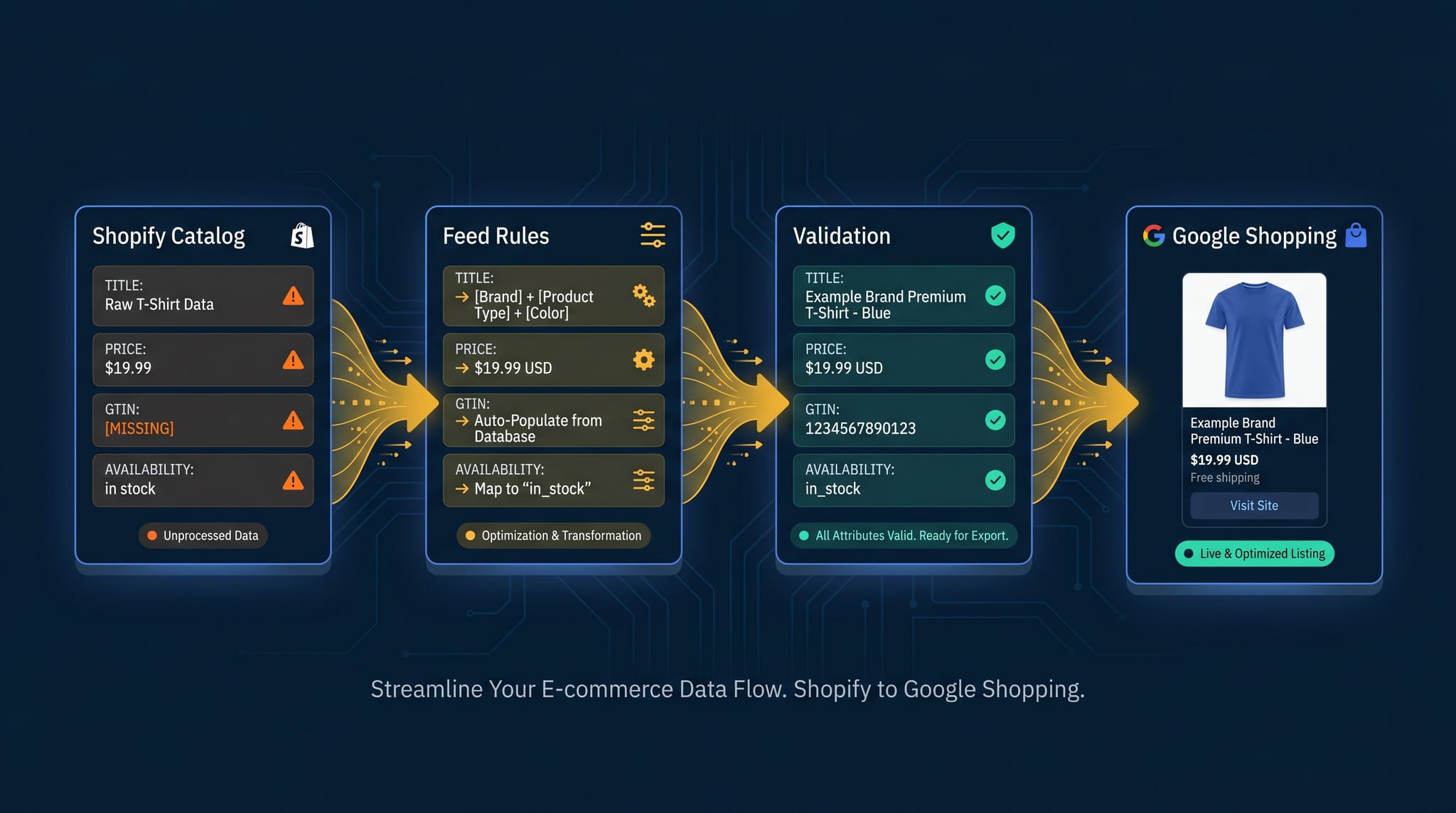
The Complete Guide to Product Feed Management for Shopify
Product feed management is more than syncing your catalog. Here's the complete guide to how it works, what breaks, and how Shopify merchants do it right.
How to Optimize Your Shopify Product Feed (Complete Guide)
Optimize your Shopify product feed for Google Shopping with this step-by-step guide. Fix titles, categories, GTINs, and feed rules to get more impressions and clicks.